

GCP Function Monitor Configuration Guide on the Elven Platform
The GCP Function Monitor from Elven Platform enables checks based on key queries within functions. This feature helps configure continuous checks, set up alerts, and define thresholds for automatic incident opening, ensuring you are quickly informed about any irregularities in connectivity or service performance.
GCP Functions is a serverless computing service from Google Cloud that allows you to run code in response to events, without the need to provision or manage servers. With GCP Functions, you can deploy highly scalable, on-demand functions, paying only for the execution time and the amount of resources consumed, eliminating fixed infrastructure costs.
Accessing GCP Function Monitoring
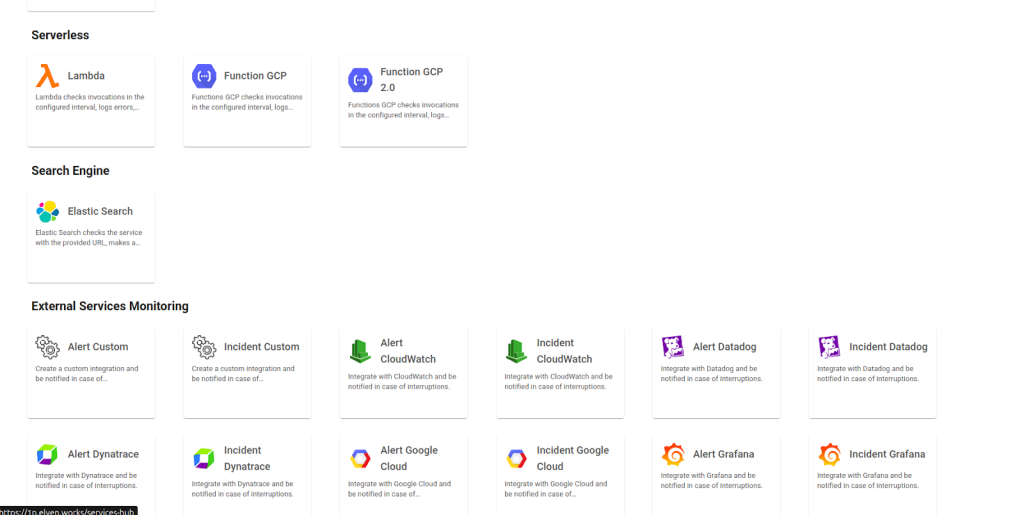
Navigate to the main menu and click on Services Hub.
Under Serverless, select the item Function GCP.
Monitoring Configuration
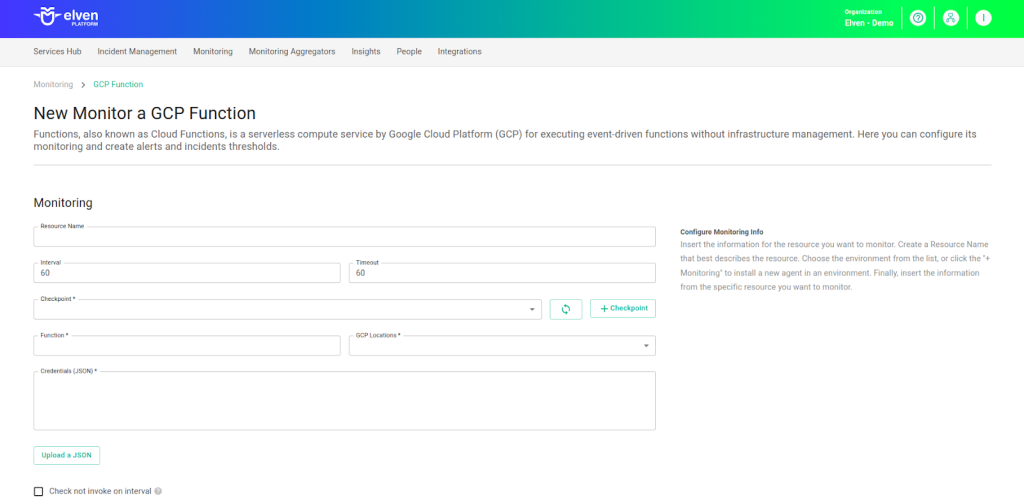
Monitoring the availability of your services has never been easier. Start by giving a clear name to the resource you want to track (Resource Name) to make identification easier. Then, adjust the interval between checks (Interval) and the response timeout (Timeout).
Select where the monitoring agent is located (Checkpoint Cloud) by choosing the appropriate Environment. If it doesn’t exist, you can create one using + Checkpoint. Next, enter the Function, which corresponds to the name of the function you want to monitor. This name is essential to identify the specific function within your GCP environment. After that, you’ll need to configure the GCP Location, which specifies the region where your function is hosted. This helps the Elven Platform connect properly to the GCP service.
In addition to this setup, a JSON credential is required to authenticate Elven Platform with Google Cloud Functions. You can enter the credential in the respective field or upload it using the Upload a JSON button.
Finally, the Check not invoke on interval option is an important setting: when enabled, it will trigger a monitoring failure if the function is not invoked within the configured time interval. This helps ensure that the Lambda function is being triggered regularly, preventing inactivity and potential workflow failures
Automatic Incident Opening
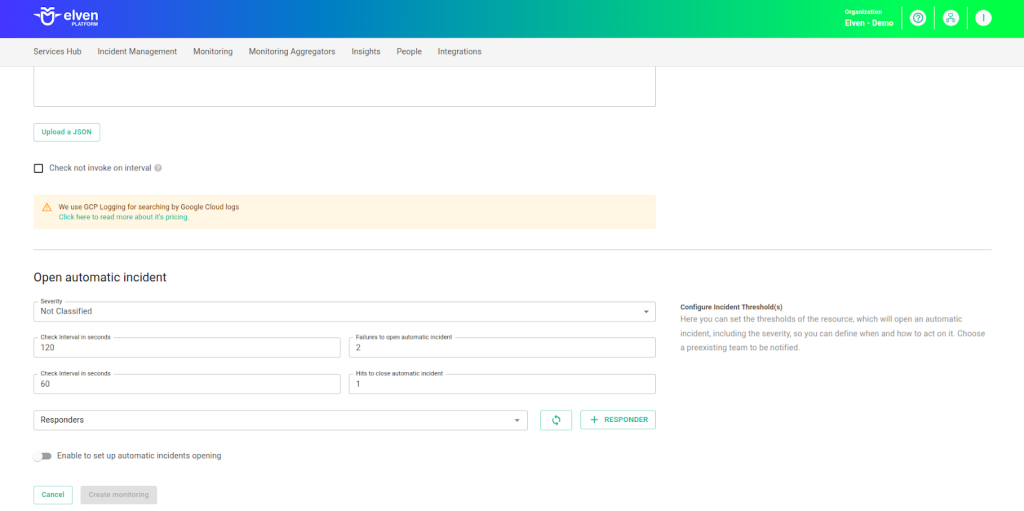
You can configure automatic incident opening to ensure a quick response to critical issues. To begin, define the incident severity, allowing you to prioritize according to urgency. Next, adjust the Check Interval, specifying the check frequency in seconds to continuously monitor the resource. This helps ensure you're always one step ahead, detecting problems as soon as they arise.
Additionally, select the team to be notified whenever an incident occurs and enable the "Enable to set up automatic incidents opening" option to ensure the configuration is active. With this setup, the platform automates incident management, making the response process faster and more efficient, without the need for manual intervention. This ensures your team is always ready to resolve any issue with speed and precision.
Maintenance Window
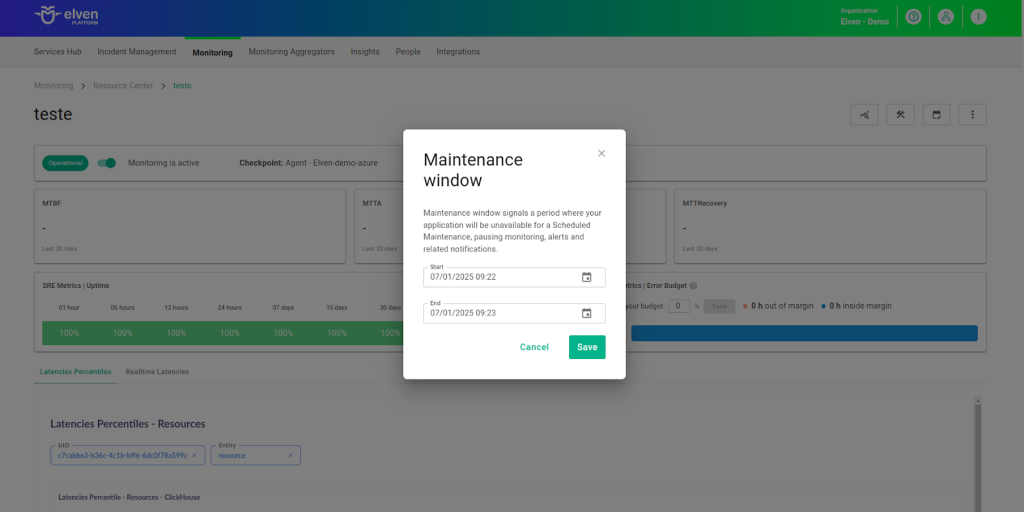
We also have the Maintenance Window, an essential feature for managing planned maintenance periods in your application. During this time frame, checks are temporarily paused, preventing monitoring, alerts, and notifications from being triggered while you perform updates or adjustments. This allows maintenance to proceed smoothly, without generating unnecessary notifications or false alarms, ensuring your operations continue in an orderly manner without unexpected interruptions in performance reports.
For example, imagine you need to update the payment system of an e-commerce platform, making backend changes such as installing new security certificates. To do this, you can configure the Maintenance Window for a specific time, such as 12/13/2024, from 2:00 PM to 2:30 PM. During this period, the Elven Platform suspends checks, preventing the monitoring system from logging temporary failures or triggering false alerts. This way, you can make the necessary changes calmly, knowing that the monitoring system won’t be affected during maintenance. This approach ensures the update is carried out in an organized manner, without impacting the user experience or generating unwanted notifications.
Application Opening Hours
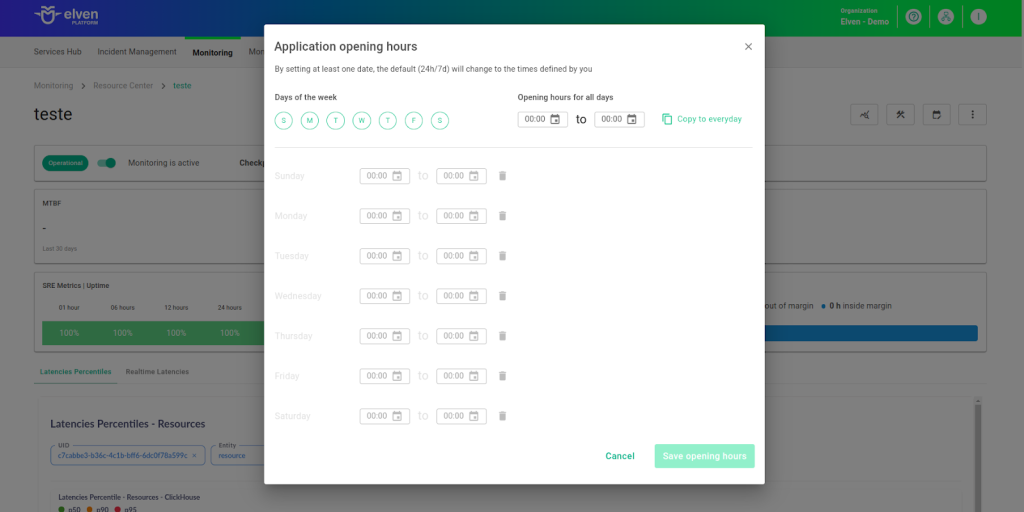
You can also rely on the Application Opening Hours feature, which allows you to configure your application's operating schedule. This functionality is essential for customizing monitoring based on the periods when your application is actually active, avoiding alerts and notifications outside of business hours. This ensures that monitoring is better aligned with your business’s real needs, providing more accurate reports and efficient management.
For example, imagine your application operates only from Monday to Friday, between 9:00 AM and 6:00 PM. You can configure Application Opening Hours to reflect this schedule by specifying the days and operating periods. With this setup, the Elven Platform automatically disables checks outside these hours, preventing the logging of failures that don’t affect end users and avoiding unnecessary alerts. This approach optimizes performance analysis, focusing only on relevant periods and providing a clearer view of your application's health during its operating hours.
Glossary of Technical Terms
GCP Functions: GCP Functions is a serverless computing service from Google Cloud that allows you to run code in response to events, without the need to manage or provision servers. It enables the execution of functions in a scalable, efficient, and cost-effective way, making it ideal for real-time tasks such as data processing, system integration, or responding to events from services like Cloud Storage, Pub/Sub, or HTTP triggers.
Timeout: The maximum time allowed for the monitoring system to receive a response from the monitored resource before registering a failure.
Checkpoint Cloud: The location where the monitoring agent is deployed, which can be a preexisting environment or one created by the user.
Function: The name of the function you want to monitor within Google Cloud Functions. This name uniquely identifies the function in the GCP environment.
GCP Location: The geographic region where the function is hosted. This configuration is essential for properly connecting Elven Platform to the Google Cloud Functions service.
JSON Credential: A file required to authenticate Elven Platform with Google Cloud. It contains the necessary permissions and authentication information to access GCP services.
Upload a JSON: An option that allows you to upload the credential file directly to Elven Platform, simplifying the authentication setup.
Check not invoke on interval: A setting that, when enabled, triggers a monitoring failure if the function is not invoked within a defined time interval. This feature helps detect inactivity and prevents potential workflow disruptions.
Enable to set up automatic incidents opening: An option that, when activated, enables automatic incident creation upon detection of critical issues.
Severity: The level of criticality assigned to an incident, allowing it to be prioritized based on urgency.
Check Interval: The time interval, in seconds, for performing continuous checks on the monitored resource.
Maintenance Window: A feature that temporarily pauses monitoring, alerts, and notifications during planned maintenance periods.
Application Opening Hours: A configuration that defines your application's operating hours, aligning monitoring with active periods and avoiding alerts outside those times.
Last updated
Was this helpful?