

Configuration Guide for External Service Incident Sentry on the Elven Platform
The External Services Center of the Elven Platform is the bridge that connects you to the best tools on the market to monitor, manage, and resolve incidents in a simple and efficient way. Through it, you can integrate Sentry with the Elven Platform, allowing the reception of alerts and events related to incidents directly on the platform. This enables you to monitor and analyze your applications and services from the perspective of Incident Management, using the best practices and methodologies available, all in one place.
API Token
To integrate Elven Platform with Sentry, we need to create an API Token. This unique key is essential for the two platforms to connect securely, ensuring a reliable and authenticated exchange of information. Simply access the Organization Settings of Elven Platform, navigate to the API section, and generate it.
Creating an API Token
In the top menu, under your user settings, click on Organization Settings.
In the API tab, click the + button to create a new API Token.
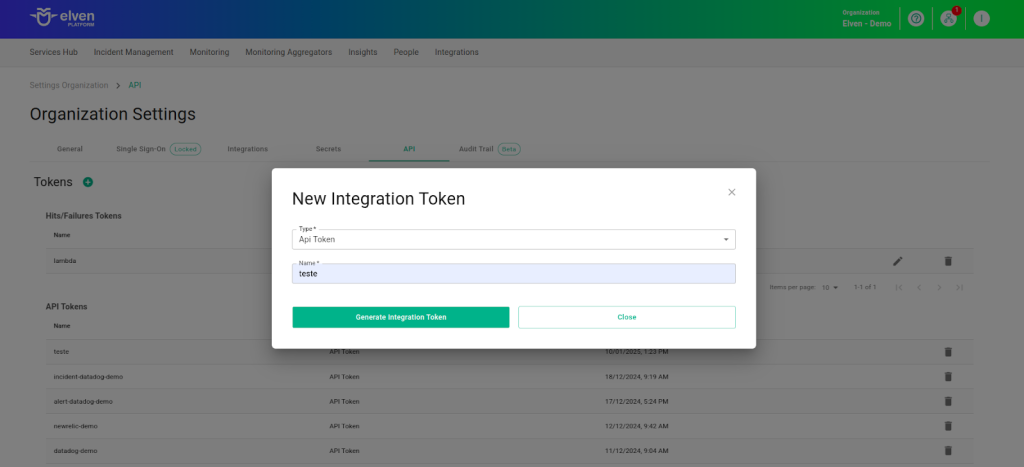
Accessing the External Service Incident Sentry
Navigate to the main menu and click on Services Hub.
In External Services Monitoring, select the Incident Sentry item.
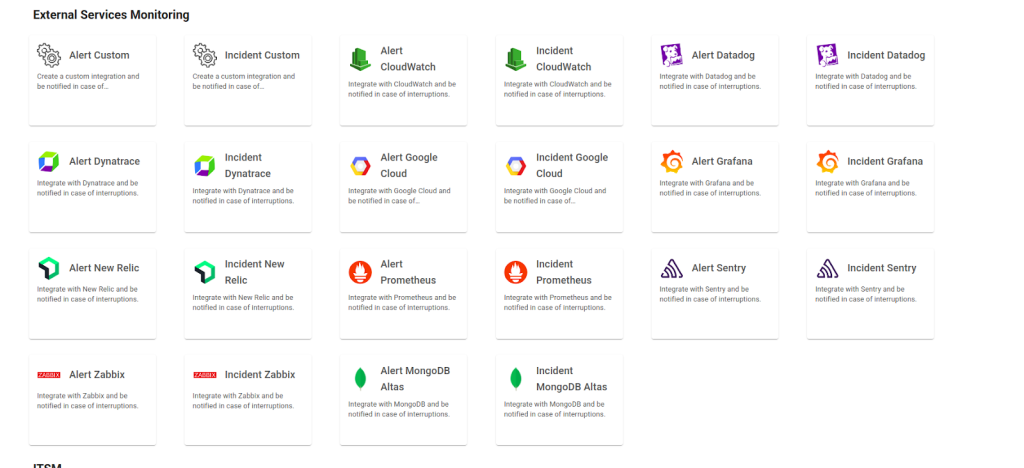
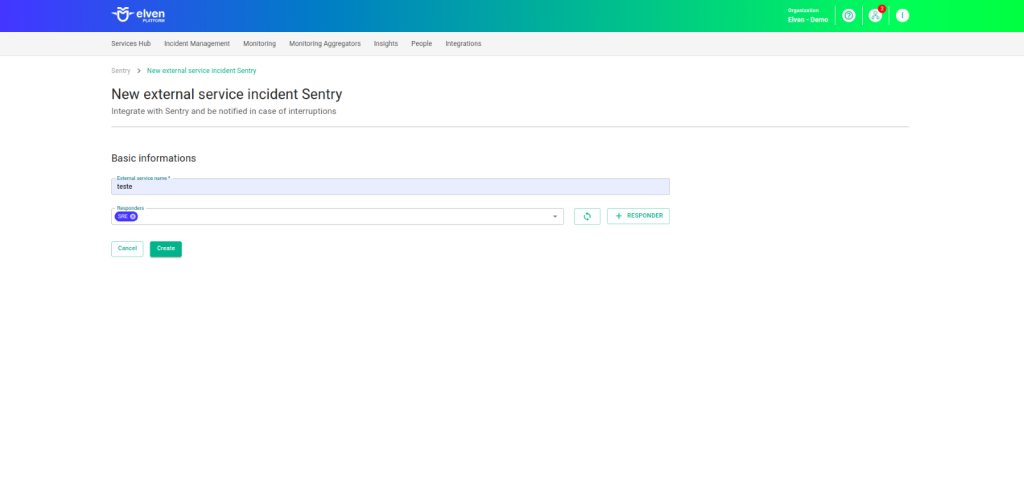
Creating the External Service for Incident Sentry
In the form, start by filling in the External Service Name field, which will be the name of the external service, and define the Responders, that is, the people or teams who will receive notifications related to this service. After that, click CREATE to proceed. This action will create the initial record of your external service.
Then, locate the API Token you generated earlier and select it to configure the integration with Sentry.
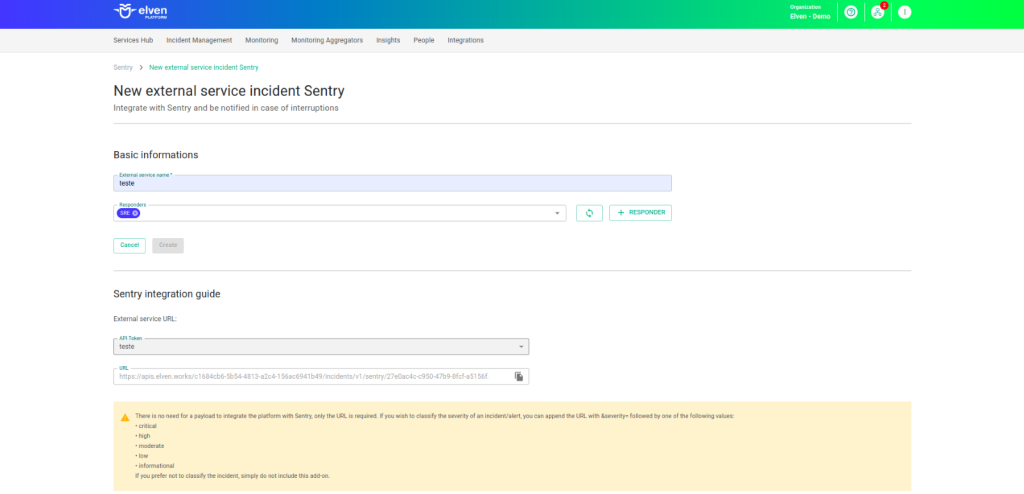
Configuring Webhooks in Sentry
Integrating Sentry with the Elven Platform is an intuitive process that allows you to centralize incident management in one place, providing greater agility and control. We’ll explain how to perform this configuration in a clear and practical way.
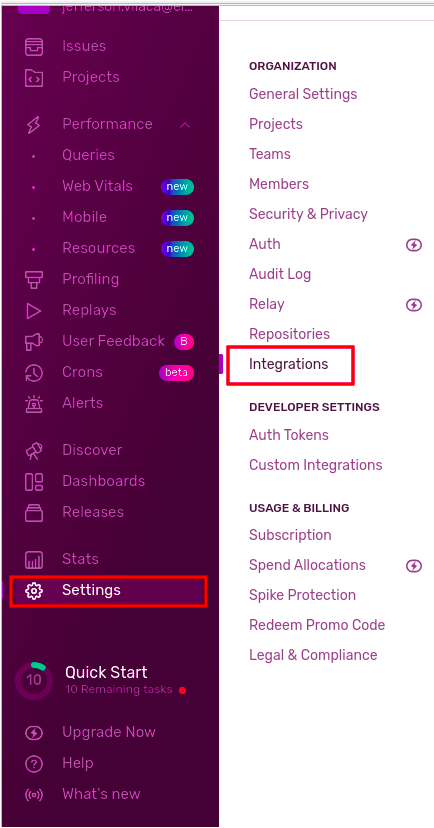
It all starts by accessing the Sentry dashboard. Click on Settings and then on Integrations. In this area, you’ll find all available integration options. To make it easier, type “Webhook” in the search bar to quickly locate the integration we’re going to configure.

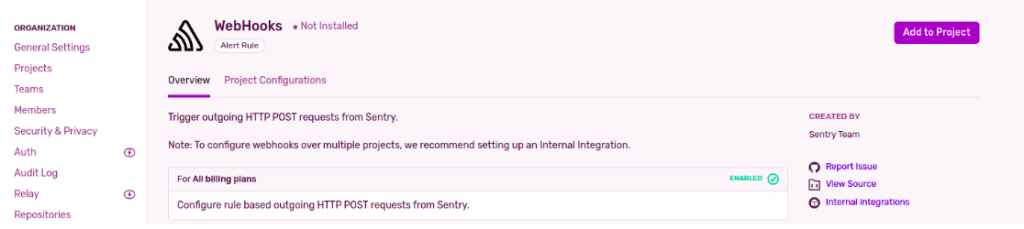
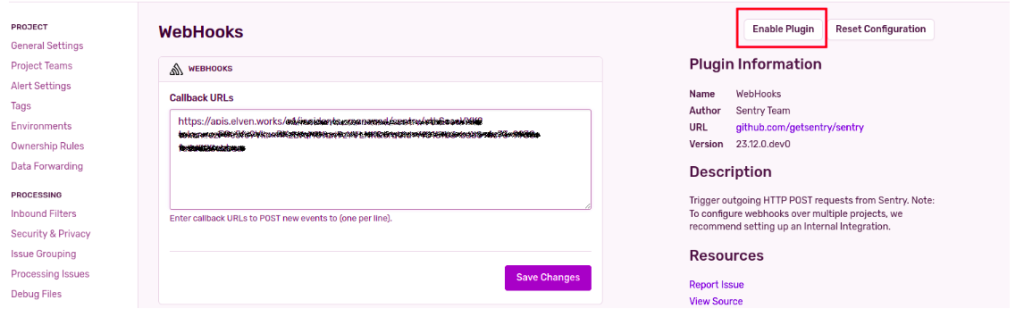
With the Webhook integration selected, click on Add Project and select your project. If you don’t have one configured yet, you’ll need to do that first. Enter the URL that was generated when you configured the External Service Sentry on the Elven Platform. This URL is essential to establish the connection between the two platforms. After filling in the Callback URLs field, remember to click Save Changes to ensure the changes are applied. After that, activate the integration by clicking Enable Plugin.
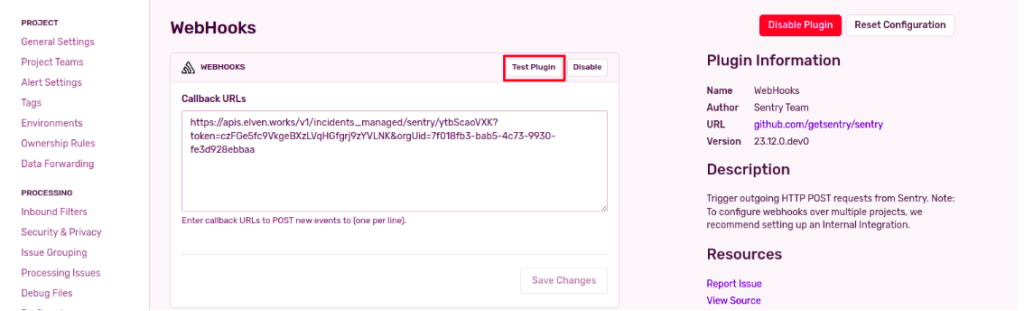
Now, it's time to test! Sentry offers the Test Plugin feature, which simulates sending an alert to verify if the communication is working correctly. When everything is properly configured, you will see an incident automatically created on the Elven Platform. This confirms that the integration was successful and that the alerts are being transmitted as expected.
Once configured, the service will appear in the External Services Monitoring Center, categorized by status, making it easier to monitor incidents, with priority given to those in an alarm state.
Additional Security and Performance Settings
IP Whitelist: API communication can be configured to allow only authorized IPs. To enable or modify this setting, contact Elven Platform support.
Rate Limiting: The default request limiting time is 5 minutes, but it can be adjusted as needed. For changes, contact Elven Platform support.
These settings ensure greater security and control over the data traffic between the integrated systems.
Glossary of Technical Terms
Sentry: Error monitoring and tracking platform used to identify and manage issues in applications. API Token: Authentication key generated in the Elven Platform to enable secure and reliable communication with external tools. Organization Settings: Section of the Elven Platform where you can configure organizational options, such as generating API Tokens for integrations. External Service Name: Name given to an external service during its configuration, used to identify it in the Elven Platform. Responders: People or teams assigned to receive incident notifications generated by an external service. WebHook: Integration mechanism that allows real-time data transmission between two platforms. In this integration context, it is used to send alerts from Sentry to the Elven Platform. Callback URL: URL provided by the Elven Platform during the External Service setup, used in Sentry to establish communication between the platforms. Save Changes: Button in the Sentry panel that saves the changes made to the integration configuration. Enable Plugin: Option in Sentry that activates the integration plugin after the settings are saved. Test Plugin: Sentry feature that allows testing the configured integration by simulating the sending of an alert.
Last updated
Was this helpful?