

Configuration Guide for External Service Alert Google Cloud on the Elven Platform
The External Services Center of Elven Platform is the bridge that connects you to the best tools on the market to monitor, manage, and resolve incidents in a simple and efficient way. Within it, you can integrate Google Cloud Monitoring with Elven Platform, allowing the reception of alerts and events related to incidents directly on the platform. This enables you to monitor and analyze your applications and services from the perspective of Incident Management, using the best practices and methodologies available, all in one place.
API Token
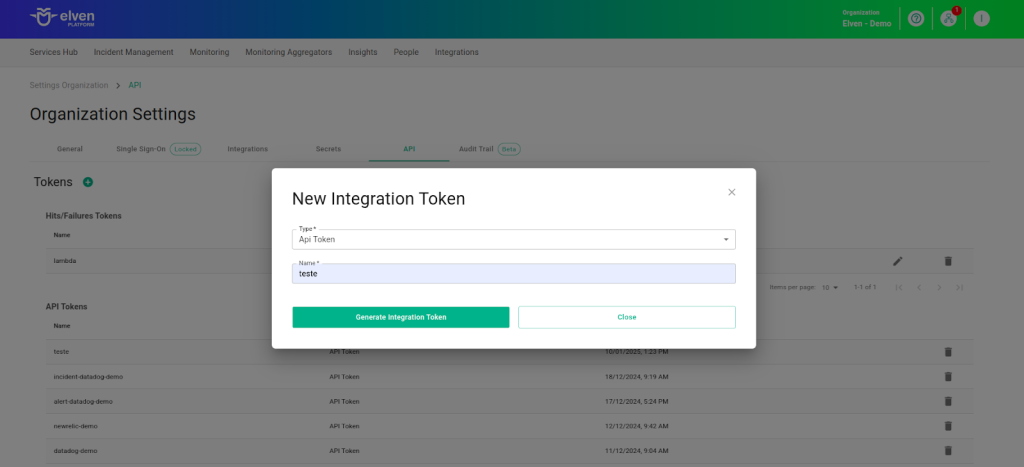
To integrate Elven Platform with Google Cloud Monitoring, we need to create an API Token. This unique key is essential for the two platforms to connect securely, ensuring reliable and authenticated information exchange. Simply access the Organization Settings of Elven Platform, navigate to the API section, and generate.
Creating an API Token
In the top menu, under your user settings section, click on Organization Settings.
In the API tab, click the + button to create a new API Token.
Accessing External Service Alert Google Cloud
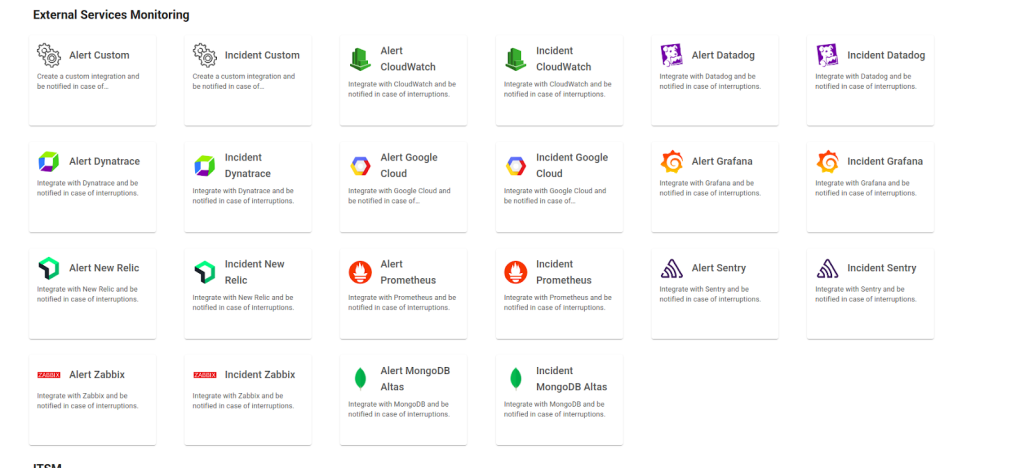
Navigate to the main menu and click on Services Hub.
In External Services Monitoring, select the item Alert Google Cloud.
Creating the External Services Alert Google Cloud
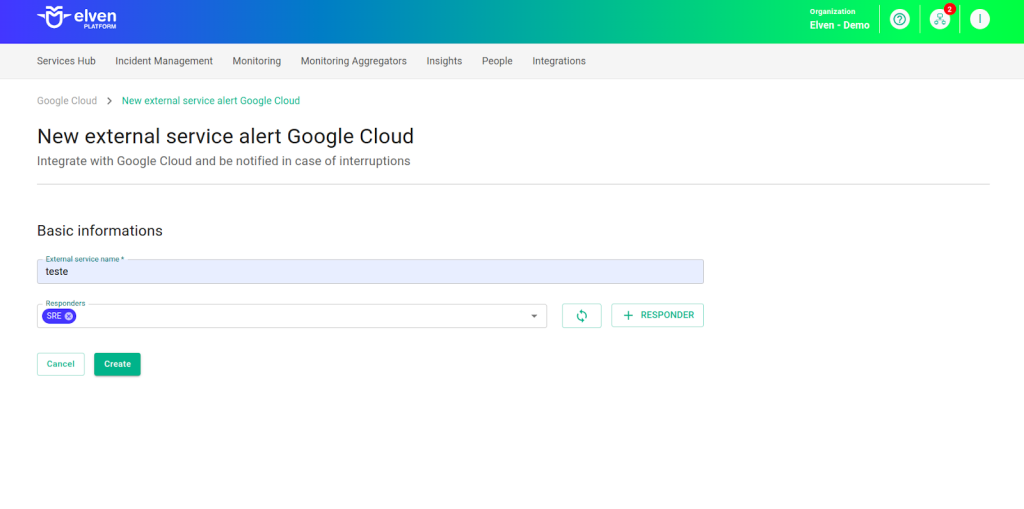
In the form, start by filling in the External Service Name field, which will be the name of the external service, and define the Responders, that is, the people or teams who will receive notifications related to this service. After that, click CREATE to proceed. This action will create the initial record of your external service.
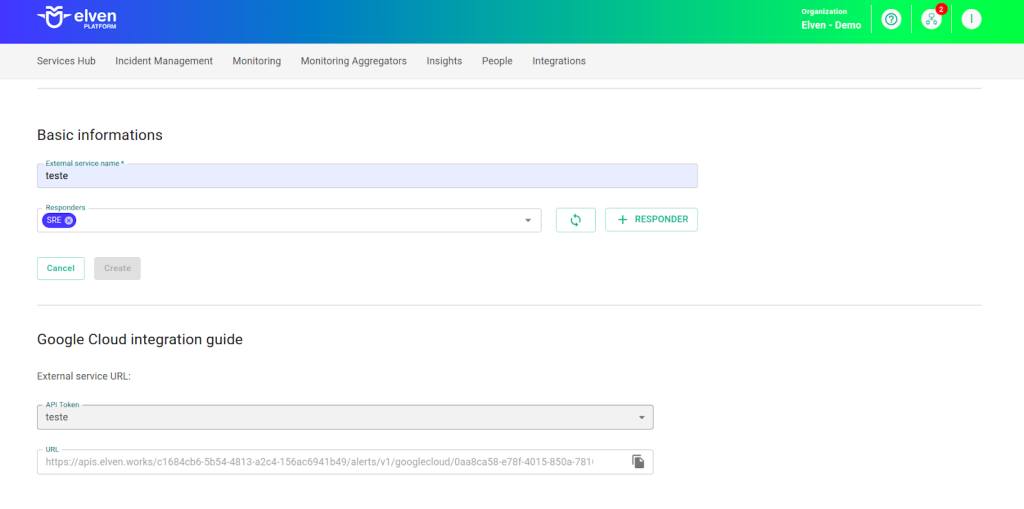
Next, locate the API Token you previously generated and select it to configure the integration with Google Cloud.
Configuring Webhooks in Google Cloud
Setting up a webhook in Google Cloud Monitoring for integration with Elven Platform is simple and straightforward, and will ensure you receive notifications efficiently and in an organized manner. Let’s go through the step-by-step in a practical and humanized way:
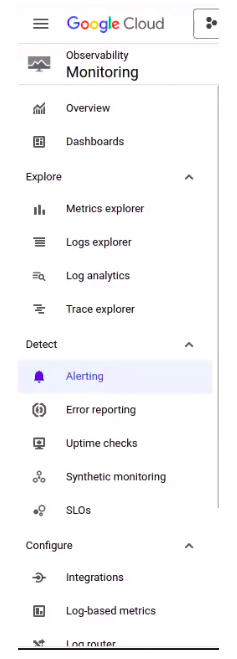
First, access your account in Google Cloud Monitoring. In the left-hand side menu, click on the Alerting option. This area centralizes the creation and management of alerts for the events you want to monitor.
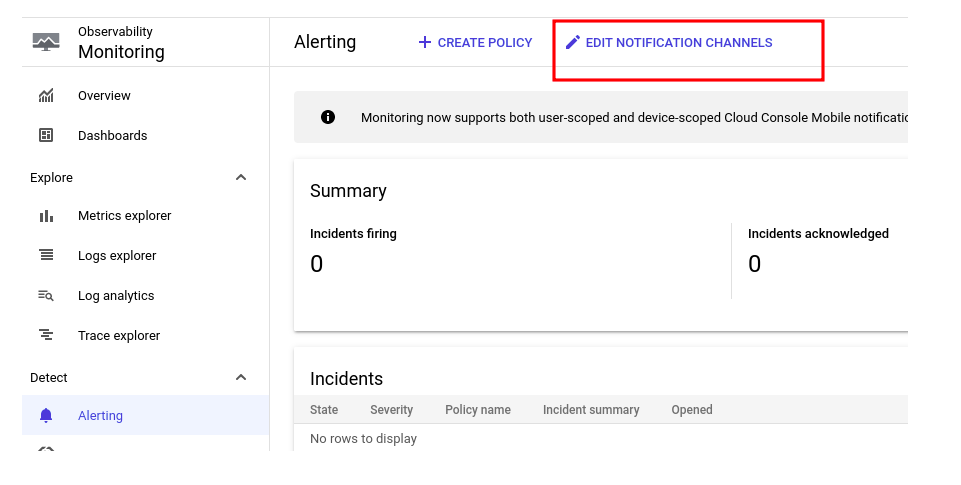
In the center of the screen, look for the Edit Notification Channels button and click it. This section is where you can add, edit, or remove the notification channels that Google Cloud uses to alert you about incidents.
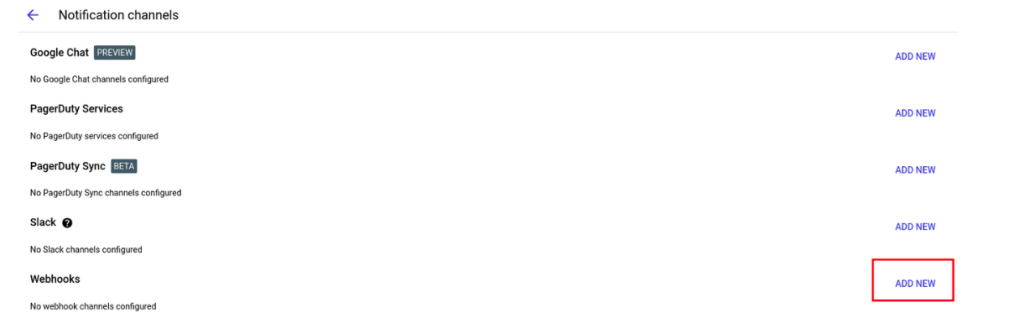
Scroll down until you find the Webhooks section and click Add New. This will open a form to configure the new notification channel.
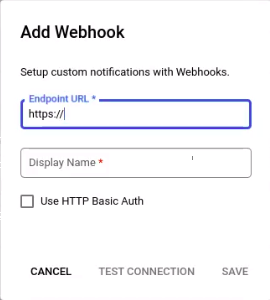
Here, you will need to fill in two essential fields:
Endpoint URL: enter the URL generated in Elven Platform, provided when configuring the corresponding External Service.
Display Name: choose a name that makes it easier to identify this webhook. It can be something like “Elven Platform Alert” or any other name that makes sense for your team.
After filling in these fields, click Save. And that’s it! Your notification channel via webhook has been successfully configured.
Now, you can link this channel to any monitoring configured in Google Cloud Monitoring and ensure that alerts are delivered directly to Elven Platform, centralizing incident management and speeding up decision-making. All of this in a practical, efficient, and secure way.
Once configured, the service will appear in the External Services Monitoring Center, categorized by status, making it easier to monitor incidents with priority given to those in an alarm state.
Additional Security and Performance Settings
IP Whitelist: API communication can be configured to allow only authorized IPs. To enable or modify this setting, please contact Elven Platform support.
Rate Limiting: The default request limiting time is 5 minutes, but it can be adjusted as needed. For changes, please contact Elven Platform support.
These settings ensure greater security and control over the data traffic between integrated systems.
Glossary of Technical Terms
API Token: A unique authentication key used to establish secure connections between Elven Platform and external tools, such as Google Cloud Monitoring.
Organization Settings: Organizational settings area within Elven Platform, where you can manage permissions, API tokens, and other administrative settings.
External Service Name: Custom name assigned to an external service when configuring it in Elven Platform. It helps identify the integrated service.
Responders: Teams or individuals designated to receive notifications related to incidents generated by integrated services.
Google Cloud Monitoring: A Google Cloud service that monitors and collects metrics from systems and applications, allowing the creation of alerts for critical events.
Alerting: Section of Google Cloud Monitoring where alerts for incidents or specific events are configured and managed.
Notification Channels: Notification channels configured in Google Cloud Monitoring, such as webhooks, emails, or messages, used to send alerts about incidents.
Webhooks: Integration mechanism that allows real-time notifications of events or changes in one service to be sent to another using a specific URL.
Endpoint URL: Address generated by Elven Platform, used in Google Cloud Monitoring to configure the webhook and enable communication between platforms.
Display Name: Name assigned to a webhook or service to facilitate its identification within Google Cloud Monitoring or Elven Platform.
Incident Management Centralization: Practice of consolidating information and alerts from multiple tools into a single platform, such as Elven Platform, to optimize issue analysis and resolution.
Secure Integration: Process of connecting two platforms, such as Google Cloud Monitoring and Elven Platform, in a way that ensures information exchange is protected by authentication and secure keys, such as the API Token.
Last updated
Was this helpful?